DSM 2.0 Supported Versions of vSphere Components
| Components | Supported Versions |
| Center Server | 7.0.3i and later |
| ESXi | 7.0 and later |
| VMFS | 5 and 6 |
| PostgreSQL | 12.17, 13.13, 14.10, and 15.5 |
| MySQL | 8.0.29, 8.0.31, 8.0.32, 8.0.34 |
DSM Provider Virtual Machine Configuration Requirements
| VM | Environment | Memory | CPU | Storage |
| Provider VM | Default Configuration | 16 GB | 8 vCPU | 736 GB (Thin Provisioning) |
DSM Provider VM required the following Stroage repository which should S3 compatable Stroage, in my lab I am using MinIO S3 Object Storage on Linux.
- A bucket for Provider Repo
- A bucket for Provider Logs
- A bucket for Provider Backups
- Database backup stora
The recommended size of the S3-Compatible Storage dempends on the size of data backup and retention policy.
Refer the blog post from Cormac Hogan, How to Create Least privileged service account for DSM.
Refer the VMware documents for detailed network ports and storage requirements.
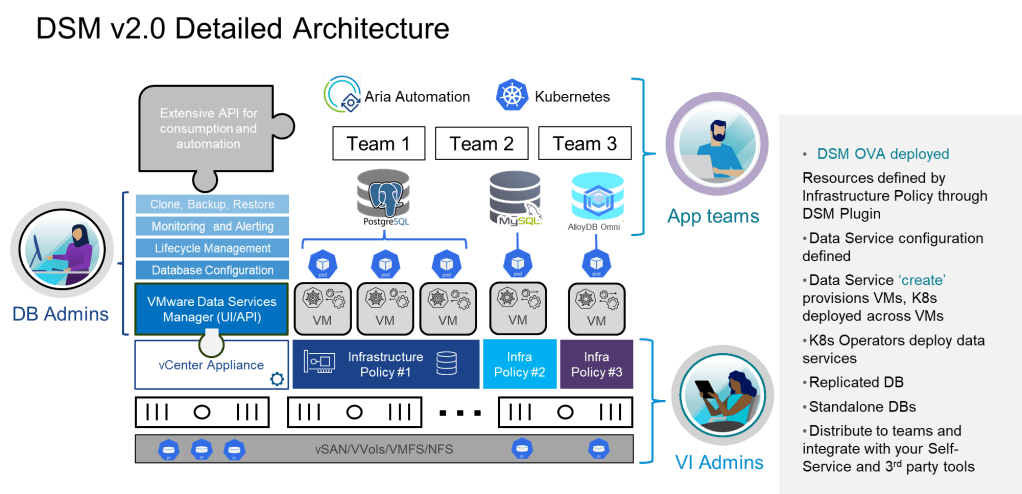
Part-2. Video recording of DSM 2.0 Installation and configurtions and Provisioning of Single PostgreSQL database.
 SK ITPro